Understanding CPU Usage for Better System Performance

It may sound surprising, but even a high-speed computer has limits. Your CPU, which is the central part that does all the thinking and calculating, cannot handle unlimited work. Just like the human brain, it can get tired when too many tasks are running at the same time.
CPU usage is the amount of power your processor consumes at any given moment. It is shown as a percentage of its total strength. For example, if your CPU usage is around 20% or 30%, your system is working smoothly. But when it stays near 90% or higher, your computer may slow down, freeze, or become unresponsive.
High CPU usage does not always mean something is broken, but it is a warning sign you should not ignore. It can happen because of heavy programs, too many background apps, outdated software, or even harmful files. The good news is that most CPU problems can be fixed with simple changes. Understanding CPU usage can improve performance, reduce lag, and keep your computer healthy in the long term.
How to See Your CPU Usage
Before you try to fix any performance problem, it is crucial to check how much CPU power your system is using right now.
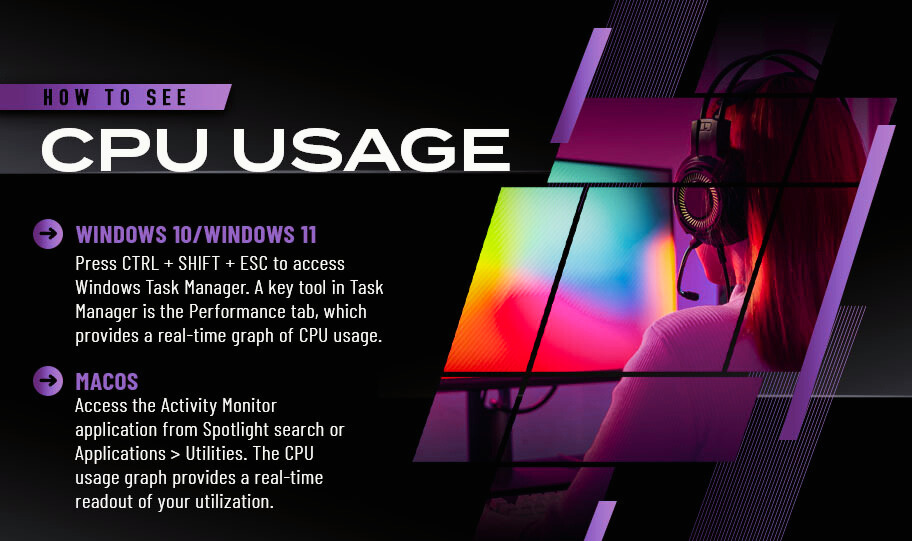
It gives you a clear idea of whether your CPU load is normal or too high. The good news is that you do not need any extra software. Every operating system already includes simple tools to check CPU usage.
Windows 10 and Windows 11
On Windows, press CTRL + SHIFT + ESC together to open Task Manager. When it opens, you will see the Processes tab. This section shows all running apps and background processes, along with how much CPU, memory, disk, and GPU each one is using. If you notice a program using too much CPU and you do not need it, click it and select End task to close it safely.
For a clearer view, open the Performance tab and select CPU. Here, you will see a live graph that updates in real time. This graph helps you understand how busy your processor is at any moment. If you want more detail, right-click on the graph and choose Change graph to > Logical processors. It shows CPU usage for each core, which helps identify uneven load or bottlenecks.
Windows 11 also shows real CPU speed along with usage, giving a more accurate picture of how your processor is performing compared to older versions.
macOS
On a Mac, open Activity Monitor from Applications > Utilities, or search for it using Spotlight. Activity Monitor lists all apps and system processes and shows how much CPU each uses. If an app is slowing down your system, you can select it and click the Stop button to close it.
At the bottom of the window, you will see a CPU usage graph that separates system processes and user apps. It makes it easy to see which methods are using your CPU. You can also view per-core Activity for more profound insight. For quick checking, you can set Activity Monitor to show a live CPU graph in your dock, so you always know how hard your CPU is working.
By regularly checking CPU usage using these built-in tools, you can quickly spot problems, stop heavy apps, and keep your system running smoothly over time.
Is High CPU Usage Bad?
High CPU usage is not always a problem. When you play games, edit videos, or run resource-intensive software, it is normal for CPU usage to reach 80% or even 90%. It means your processor is doing the work it was designed to do. Problems start only when high CPU usage stays for a long time or appears during simple tasks.

High CPU Temperature and Performance Slowdown
When the CPU works very hard, it creates heat. If the temperature becomes too high, the system automatically slows down the CPU to protect it. This safety step is called thermal throttling. It prevents damage, but it also makes your computer slower.
If your system feels slow or noisy, check your CPU temperature. Many free tools can show CPU heat in real time, even while gaming or working. If temperatures stay high, it usually means your CPU is under stress.
Common reasons include dust inside the computer, poor airflow, or a processor that is not powerful enough for your daily work. On laptops, blocked air vents or use on soft surfaces can also increase heat.
High CPU Usage Without a Clear Reason
Sometimes CPU usage stays high even when you are not doing much. It often happens during idle time or while using simple apps, such as a browser. When this happens, open Task Manager or Activity Monitor and look at the running processes.
Usual causes include background updates, system services stuck in a loop, wrong settings, or harmful software. Finding the exact process helps you fix the issue instead of guessing.
Practical Tips to Lower CPU Usage
Restart Your Computer
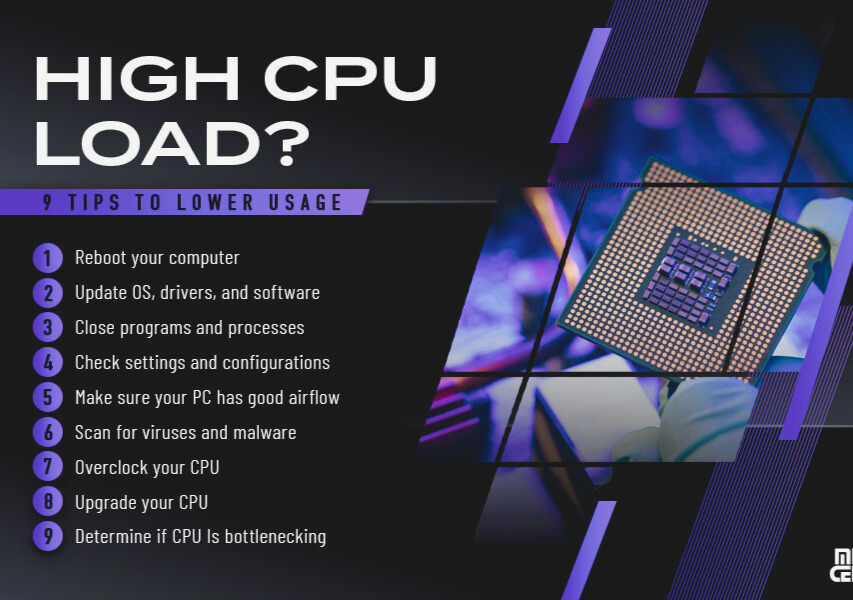
A simple restart can fix many short-term problems. It clears temporary errors and stops background tasks that may be using too much CPU.
Keep System and Software Updated
Constantly update your operating system, drivers, and apps. Updates fix bugs, improve performance, and close security gaps that can cause high CPU load.
Close Unnecessary Apps
Use Task Manager or Activity Monitor to find apps using a lot of CPU. Close programs you do not need. If you see an unfamiliar process, search its name first to make sure it is safe before closing it.
Check Important Settings
If you use a dedicated graphics card, make sure your monitor cable is connected to the graphics card, not the motherboard. A wrong connection can force the CPU to handle extra graphics work.
Enable hardware or GPU acceleration in supported apps to reduce CPU workload. On Windows, choose a balanced or high-performance power plan to ensure the CPU runs at the correct speed. If your RAM is often full, increasing virtual memory can also help reduce CPU stress.
Keep Your PC Clean and Cool
Dust blocks airflow and traps heat. Clean fans, vents, and air paths using compressed air. Make sure nothing blocks the airflow, especially on laptops. Always place laptops on hard, flat surfaces.
Avoid using liquids when cleaning. For sealed laptops or advanced cooling systems, professional cleaning is the safest option.
By understanding CPU usage and following these simple steps, you can improve performance, reduce heat, and keep your computer running smoothly for a long time.
Scan for Viruses and Malware
Sometimes, high CPU usage is not caused by standard software at all. Harmful programs can secretly use your CPU to show ads, track your activity, or mine digital coins. These programs often run in the background and may not appear clearly in basic system tools.
If your CPU usage stays high even when your computer is idle, run a full scan using a trusted antivirus or anti-malware program. Choose well-known security tools and avoid downloading software from unknown websites. Keeping your system clean protects performance, privacy, and long-term stability.
Check If Your CPU Is the Limiting Factor
If your computer has a graphics card, your CPU can become overloaded if it cannot send data to the GPU fast enough. This situation is called a CPU bottleneck. It often causes low frame rates or stuttering in games and heavy applications.
You can check this by monitoring CPU and GPU usage while gaming or working. If the CPU usage stays very high while the GPU usage is much lower, the processor may be holding the system back. Knowing this helps you decide whether software changes or hardware upgrades are needed.
Carefully Increase CPU Speed (Advanced Users)
Some processors allow you to increase their speed beyond factory settings. It can improve performance and reduce bottlenecks in specific tasks. However, this should only be done after learning the basics.
Raising CPU speed can increase heat and power use. If done incorrectly, it may cause crashes or shorten hardware life. Good cooling and stable settings are significant. Beginners should proceed slowly or avoid this step altogether.
Consider Upgrading Your CPU
In some cases, no setting or fix will help because the CPU is too old or weak for modern tasks. If you use heavy software, play newer games, or do professional work, upgrading to a newer multi-core processor can make a big difference.
Before upgrading, check that the new CPU works with your motherboard. Many people choose CPU and motherboard bundles to avoid compatibility issues. For gaming, faster clock speeds usually matter more. For tasks like video editing or design work, having more cores is often more critical.
Choosing the right CPU based on your real needs ensures better performance, smoother work, and a longer-lasting system.
What is normal CPU usage?
Normal CPU usage depends on what you are doing. When your computer is idle, CPU usage is usually between 1% and 10%. During light work, such as browsing or writing, it may reach 30%. Heavy tasks such as gaming or video editing can push it to 70% or higher for short periods.
Is 90% CPU usage dangerous?
No, 90% CPU usage is not dangerous if it happens for a short time during heavy tasks. It becomes a problem only when it stays high for a long time, especially when you are doing nothing. Long-term high usage can cause heat and slow performance.
Why is my CPU usage high when nothing is open?
It usually happens because of background programs, system updates, startup apps, or malware. Open Task Manager or Activity Monitor to see which process is using the CPU. A restart or malware scan often fixes the issue.
Can high CPU usage damage my computer?
High CPU usage alone will not damage your computer. Modern systems protect themselves by slowing down when they get too hot. However, prolonged high heat can reduce performance and shorten hardware lifespan.
How do I reduce CPU usage safely?
You can reduce CPU usage by closing unused apps, turning off unnecessary startup programs, updating your system, scanning for viruses, and keeping your PC clean and cool. These steps are safe and work for most users.
Does more RAM reduce CPU usage?
More RAM does not directly lower CPU usage, but it helps the system run smoothly. When RAM is full, the CPU has to work harder. Adding more RAM can reduce CPU stress in multitasking and heavy workloads.
Is high CPU usage normal while gaming?
More RAM does not directly lower CPU usage, but it helps the system run smoothly. When RAM is full, the CPU has to work harder. Adding more RAM can reduce CPU stress in multitasking and heavy workloads.
Is high CPU usage normal while gaming?
Yes, high CPU usage is normal during gaming, especially in CPU-heavy games. If performance is smooth and temperatures are safe, there is no issue. Problems start only when games lag or the system overheats.
What causes CPU overheating?
CPU overheating is usually caused by dust, poor airflow, old thermal paste, heavy workloads, or weak cooling. Cleaning fans and improving airflow can quickly reduce temperatures.
How do I know if my CPU is too weak?
If your CPU stays near 100% during basic tasks, apps open slowly, or games stutter while the GPU is underused, your CPU may be too weak for your needs. It often means it is time to upgrade.
Should I upgrade my CPU or GPU first?
If CPU usage is high and GPU usage is low, upgrade the CPU first. If GPU usage is maxed and CPU usage is low, the GPU is the limit. Checking both helps you make the right upgrade choice.